
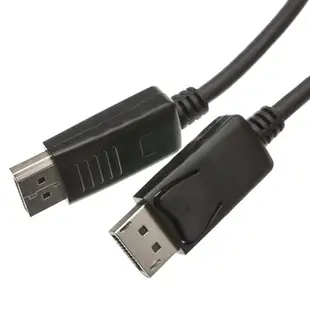
Choosing a DisplayPort cable for a desktop monitor
A desktop may have display outputs on the graphics card and on the motherboard, while the monitor may have more than one input. Write down which output currently drives the screen and which input you plan to use.
Which connector and display mode?
Full-size DisplayPort and Mini DisplayPort take different plugs. Decide on the resolution and refresh rate together, then check the computer output, cable specification and monitor input for that combination. An advertised maximum on the cable cannot add a display mode that the monitor does not offer.
Checking a new workstation layout
Leave enough clearance behind a wall-mounted screen to insert and remove the plug. For a monitor on an arm, measure at the arm’s furthest position. If a picture appears only at a lower refresh rate, test the requested mode on a direct connection before adding the dock back into the path.
Buying for two monitors at one desk
If two identical monitors sit side by side but one stays dark, make a record of port, cable and screen before swapping anything. Try the working screen on the other cable while keeping the computer output the same. Then try the other monitor with the known working combination. When both displays work separately, check the computer or dock documentation for how many displays and which simultaneous modes it supports. For a purchase order, specify the display setup you expect to use together. A cable rating printed for a single display tells you little about the computer’s ability to drive two screens at once.
What can I change if the screen works only on one desk?
Bring the monitor's input label and the working cable's part number to the second desk. A full-size DisplayPort cable between a dock and a monitor may work there even though a second dock offers HDMI output only. The 10H1-64106 is listed from DisplayPort to HDMI. An HDMI output feeding a DisplayPort-only screen requires a solution built for that direction. Start testing with one screen at its normal resolution. Add the dock or second display afterward so a change in available modes can be traced to one part of the setup.
Plan the input change when a monitor is shared
A display on a reception desk may connect to a work PC by DisplayPort and to a visiting laptop by HDMI. Before ordering a switch or an adapter, check the inputs actually available on that display and how the user selects them. With the two machines connected, change the monitor input and verify the expected picture returns on each one. If the monitor also supplies sound, check where audio goes after each change. This exercise tells you whether the monitor’s own controls can handle the job. It also reveals whether a second cable should carry native DisplayPort or a different signal from the visitor’s laptop.
Compare parts for your setup
DisplayPort v1.2 Video Cable, 17.28 Gbit/s Data Rate for up to 4k@75Hz, DisplayPort Male, 6 foot
10H1-60106
- Connector references
- DisplayPort · DisplayPort Male
- Data rate
- 17.28 Gbit/s
- Video format
- 4k@75Hz
- Length
- 6 ft
Match the source end, display end, resolution and refresh rate, especially for links between DisplayPort and HDMI. Measure the installed route against this 6 ft length.
DisplayPort 1.4 Coupler / Gender Changer, DisplayPort Female to DisplayPort Female, Black
30H1-60400
- Connector references
- DisplayPort · DisplayPort Female
Mini DisplayPort to HDMI Passive Adapter Cable, Mini DisplayPort (MiniDP/mDP) Male to HDMI Female, Only works from DisplayPort to HDMI, 6 inch
30H1-63000
- Connector references
- Mini DisplayPort · HDMI · HDMI Female · DisplayPort
- Configuration
- Passive
- Length
- 6 in
Match the source end, display end, resolution and refresh rate, especially for links between DisplayPort and HDMI. Measure the installed route against this 6 in length.


