How to find a replacement cable when you don’t know its name
The printer still works. So does the monitor you rescued from the spare room. The one thing missing is the cord, and the drawer has three that look almost right. Even a label like “USB” leaves a lot to guess. An old plug, an empty socket, a length of cord or a few characters printed on a tag can each give you a place to start.
What cable is this? Look at both ends.
If you have the old cable, set the two tips side by side. If it’s gone, look at the socket on each device. Is the opening oval, square or stepped? Are there pins, holes, a latch or a pair of screw posts? Read any lettering beside it. A close-up taken straight on shows the outline. A second, wider photo preserves a label like HDMI OUT or PROG that explains what the socket does.
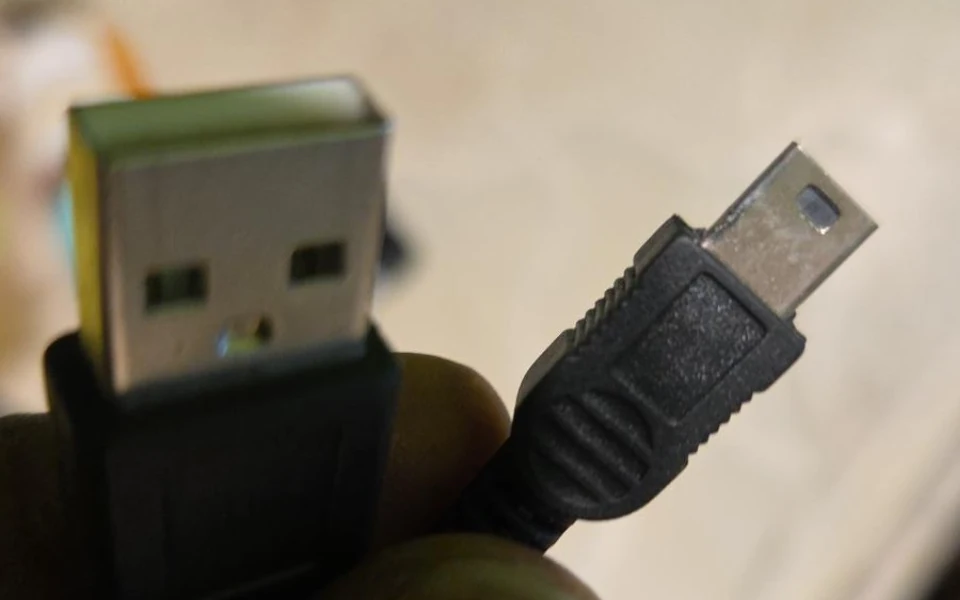
On our original Cronus Zen, “the USB cable” could mean two different things. The side programming port takes five-pin Mini-B. The rear console port takes Micro-B. The port’s location settles a question the device name alone can’t answer. You can identify a connector from a photo or compare the five-pin Mini-USB cables once you recognize the shape.
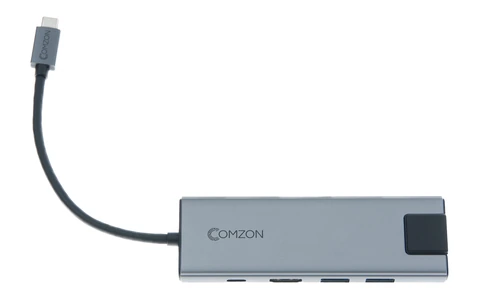
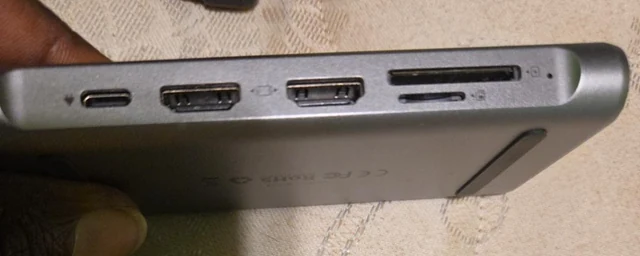
Then name the job. To put a Chromebook on a monitor, check whether its USB-C port supports video output and which input the monitor has. If you also need to charge through the same port, look for a hub with a separate power input. Our USB-C hub guide shows the actual display and charging connections side by side.
How long should the cable be?
Run a piece of string along the path the cable will take. Go down the monitor arm, around the back of the desk and up to the wall jack. Measure the string, then allow enough slack to pull the equipment forward and unplug it. In a tight cabinet, measure the clearance behind the socket as well. A straight plug needs room for its housing and for the cable to bend.
Say you’re looking for a 30-foot HDMI cable for a projector. The current catalog lists 25- and 35-foot options on either side of that length. If the measured route is 28 feet, a 25-foot lead will leave you short. The catalog has a 25-foot HDMI cable rated for 4K at 60 Hz and a 35-foot HDMI cable rated for 4K at 30 Hz. The longer one clears that distance, but check the refresh rate your projector needs. For a router across the same room, the search changes to 30-foot Ethernet cables. The distance is the same. The plugs and the signal are different.
Odd connections you can actually look up
A power cord for an older desktop
“HP desktop power cord” is a starting point. Get the model from the case and check the inlet and electrical rating in its manual. The C13 computer power cord mates with a C14 inlet. The three-lobed C5 cord fits a C6 inlet, often on a laptop power brick. Both examples have a three-prong U.S. wall plug. The equipment end tells you which one to investigate. If the brick itself is missing, a detachable cord alone won’t replace it.
Serial equipment and older storage
Two nine-pin serial leads can look identical and be wired differently. If the equipment manual specifies a crossover, compare the DB9 null modem cable and check which end needs pins and which needs sockets. For an older SCSI enclosure, a pin count is only the first clue. The offset 68-pin VHDCI SCSI cable shows the narrow connector and the orientation to compare with your equipment.
A TV and soundbar with an optical port
Look for OPTICAL OUT on the TV and OPTICAL IN on the soundbar. If both have the square, keyed optical socket, compare an optical audio cable for a soundbar. A round headphone jack is a different connection. Checking those two labels before moving the TV can save a second trip behind it.
Have a SKU or part number? Start there.
A tag on the old lead, a line on an invoice, or a parts list can save the detective work. Paste the supplier part number into the search box. Searching for 10D1-20206 brings up a single result for the six-foot DB9 null modem cable. The same search works with the hyphen omitted. Keep the final digits or letters when you have them. Similar part numbers can identify different lengths or wiring.
If all you have is the computer’s model number, use its manual to find the name of the port. Then search for the two ends or for the connector and a length. Open the product page and compare the photo, specifications and part number together. Where several lengths share a supplier photo, the length listed for that exact SKU is the detail to go by.