
Pick computer headphones for listening or calls
Hearing a meeting is only half the job when you also need to speak. Start with the audio connections on the computer and decide whether you need earphones for playback, a microphone for calls, or both through one plug.
Which jack is actually available?
A laptop can have a combined headset jack, while a desktop may have separate microphone and headphone sockets. Check the symbols beside them. If the route uses USB-C, read the adapter’s supported audio functions and the headset plug style. A stereo listening lead alone will not carry a microphone signal.
Test before the meeting
Select the intended output and input separately in the call application. Record a few spoken words and play them back. If music sounds fine but your recording is silent, focus on the microphone path, device selection and permissions before replacing the listening earpieces.
Plan for a computer with separate audio jacks
Suppose a headset has a single plug and the desktop has two colored sockets on the front. Use the desktop manual to identify the headphone output and microphone input. Then check whether the headset’s microphone contact and the computer’s inputs can be joined by a compatible headset adapter. A common headphone splitter made for two listeners sends playback to two pairs of ears and serves another purpose entirely. Look at the icons on the adapter branches. If one carries a microphone icon, still confirm the plug wiring matches the headset before deciding it will preserve speech as well as music.
Equipping a shared row of training laptops
Run one short exercise with the exact laptop image that trainees use. Play the lesson, record a spoken answer, and make sure the exercise saves and plays back the response. The 5002-11306 bundles six USB-C earbuds with microphones. If the laptop has only USB-A or its USB-C socket is occupied by a dock, plan where each person can connect the headset during the session. Label one tested pair and keep it at the instructor station. Swapping that pair onto a problem laptop helps separate a bad earpiece from a device setting or an app permission.
Do the headphones need to fit under other equipment?
A long session at a support desk may involve glasses, a head covering or equipment that limits where an ear cup or microphone boom can sit. If several people share the workstation, compare one representative headset with the way they actually work. Try adjusting the band with glasses on, moving the microphone out of the way and reaching the volume control without looking away from the screen. Then check how the lead hangs when the user turns toward another monitor. These practical details can make a wired earbud or a headset with a different control position a better choice even when the computer connection is identical.
Compare parts for your setup
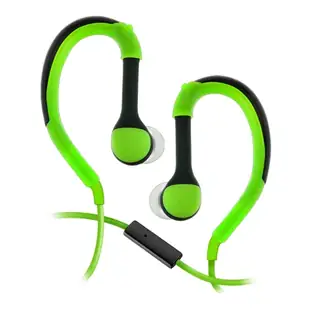
Flexible In-Ear Buds w/ In-Line Mic, Sports Ear Clip, 3.5mm, Green
5002-125GN
- Dimensions in listing
- 3.5mm
Pro Series USB-C Earbuds With Mic, 6 pack (2 Black, 2 Purple, 2 Blue)
5002-11306
- Connector references
- USB-C
- Package quantity
- 6 pack
Choose a headset for calls or an adapter to reuse a favorite wired pair with another device. The pack contains 6 pieces; count the parts required per installation.


