
What do I need for a clear first livestream?
A working stream depends on camera framing, clear speech and a capture source the software recognizes. The two items here solve different physical jobs: a USB webcam with a microphone captures a face and voice, while a desk stand holds equipment for a steadier shot or a better mic position.
What is actually included with the stand?
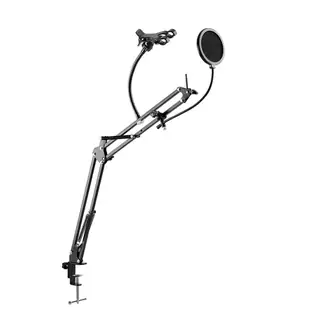
A phone holder and pop filter help position existing gear. Check the clamp’s fit on the desk, clearance behind the tabletop and compatibility with the microphone you plan to attach. The stand is a mechanical accessory; choose your audio capture device separately where needed.
Make a private recording first
In OBS, select the webcam as a video capture source and select the intended microphone. Record a short clip with a spoken count and a hand clap, then play it back through headphones. Check framing, voice level, echo and synchronization before changing the lighting or buying another camera.
Why does my voice sound doubled?
The webcam microphone and a separate desk microphone can both be active in the same scene. Check the audio meters while speaking and mute one capture source for a test. If the double sound disappears in the recording, correct the source settings before buying another microphone.
Set up a stream where the microphone stays out of frame
Place the camera where the audience should see you and preview its real framing before positioning the microphone. The 8190-00026 desk stand includes a rotating phone holder and a pop filter. Check the microphone attachment, desk clearance and available space around the keyboard. Try speaking while reaching for the mouse and tapping the desk. Listen to the recording for bumps and check that the stand or filter does not cover your face. If you stream using the phone, leave access to its charge port and find a separate supported path for audio input. The stand holds equipment; your capture and recording connections are still separate decisions. Watch the preview with the phone both vertical and horizontal if you use both.
Will this webcam show a console game on my stream?
A USB webcam can put your face or a tabletop demonstration into a stream. Capturing a console’s HDMI output is another job, typically handled by a compatible capture device connected between the console and the computer, or by a supported streaming feature built into the console. Decide whether you need the player’s face, the game screen or both. In OBS those are separate sources, so check that each source appears by itself before arranging a picture-in-picture scene. A phone holder and pop filter can improve positioning for a live demonstration, but neither receives the console’s video output. If your budget covers one addition, a missing game feed calls for a different purchase than a stream that already shows the game and needs a face camera.

