
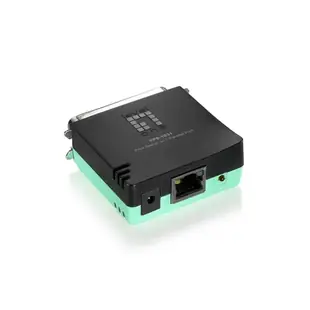
Can my parallel printer work from an Ethernet network?
A reliable older label or document printer may have a parallel interface while newer workstations use network printing. The print server listed here bridges a supported parallel printer and a wired Ethernet network. First establish the printer model and its exact interface.
What compatibility should I verify?
Check the server’s supported protocols, printer list and operating-system setup against your environment. The printer driver may still be required on each workstation or print server. Confirm whether the application needs bidirectional status, special label commands or features beyond basic print jobs.
What else has to be on hand?
Check the parallel connector and cable, the server’s power source and an Ethernet patch lead. Test a real job from the production application before committing several workstations. A successful configuration page alone does not prove that labels or forms will print correctly.
What test job is most informative?
Send the actual label, invoice or multi-page form used in production from an ordinary user account. Confirm page orientation, media size, graphics and whether a second workstation can submit a job. A test from an administrator account alone can miss application or permission problems that affect everyday printing.
Connecting a parallel printer to an office network
A print server can give a compatible legacy printer a network connection while preserving the printer’s own interface. The 74X5-04112 lists one parallel port and one 10/100 Ethernet port. Check the printer’s exact interface, the server’s supported print protocols and driver availability on the client computers. A physical connection does not guarantee that scanning, status reporting or other multifunction features will pass through. Before standardizing several offices, test the documents they actually print, including labels or special page sizes, and record the working driver and network configuration for the next workstation. Include a test from a second workstation before removing the printer’s former host computer.
A printer port can fit while the office software still cannot print
Before replacing a printer or its print server, create an ordinary local test page using the supported arrangement and keep a copy of the settings. Then try the job causing trouble. A legacy label program may depend on a particular driver, page language or method of addressing the printer. Ask the software provider whether a network print queue is supported. Confirm the server’s physical interface separately; a parallel printer socket and a USB printer cable are different starting points. If simple pages succeed and only a business application fails, investigating the application or driver can be more productive than ordering a second server. Repeat the test from another workstation with the intended permissions. That separates one computer’s configuration from a problem shared by every user of the print queue.
A closer look at this part
Parallel Print Server, 1 Parallel Port, One 10/100 Fast Ethernet RJ45 Port
74X5-04112
- Connector references
- RJ45
