
Which DisplayPort cable connects my Mac to this monitor?
Turn the monitor around before shopping. The cable for a display marked DP IN may look completely different at its Mac end depending on when the computer was made. A monitor might also have a DisplayPort OUT socket beside the input. Photograph the labels while the screen is pulled forward. They are much harder to read once the arm is back against the wall.
Does my Mac have USB-C or Mini DisplayPort?
Apple's port guide shows the outlines and markings for different Mac generations. Thunderbolt 1 and 2 share their connector shape with Mini DisplayPort and can provide Mini DisplayPort video to a compatible display. That matters if you inherited an Apple display with a fixed cable. Read its model label and identify whether the display itself requires Thunderbolt. The identical plug outline on an older Thunderbolt display and a Mini DisplayPort display does not establish that the two use the same signal.
What should connect to the monitor's DP input?
For a Mac that supports video from its USB-C port, the six-foot 10U3-60106 takes USB-C at the computer to full-size DisplayPort at the monitor. With a suitable older Mac that outputs Mini DisplayPort, the six-foot 10H1-62106 reaches the same kind of monitor through a smaller plug on the computer end. A full-size DisplayPort cable with the same plug at both ends is another useful option when your dock already supplies a full-size DisplayPort output. Sketch where the dock fits before choosing.
Can I reuse the HDMI cable in a meeting room?
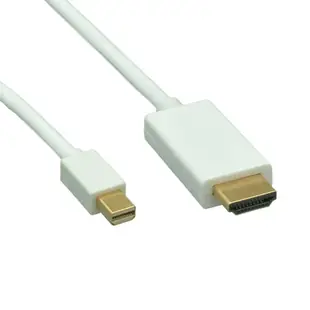
Look at what is waiting on the table. If an existing HDMI cable already runs to the screen, its loose plug needs an HDMI socket. The 30H1-63000 provides that socket for a compatible Mini DisplayPort source. If you are free to replace the entire run, a Mini DisplayPort to HDMI cable such as 10H1-62306 has a plug at each end. Direction matters here. A device described for a Mini DisplayPort computer sending video to HDMI cannot serve as a general solution for an HDMI computer sending video to a DisplayPort monitor.
What if the picture is sharp but motion looks uneven?
Check both resolution and refresh rate. “4K” describes the picture dimensions people generally have in mind when shopping. A refresh rate such as 60 Hz describes how often the display can update. Look for the combination your Mac, adapter or dock, cable and chosen monitor input all support. If the display is blank or offers fewer settings than expected, try one display directly on the Mac and select the matching input on the monitor. Reconnect the dock after you establish a working picture.
How long should the cable be on a monitor arm?
Move the screen to its farthest useful position and run a piece of string from the Mac or dock through any cable clips to the input. Leave room to turn the screen and access its menu without pulling sideways on the plug. Compare the measured route with each length's own specification. Even closely named cables within a catalog can have different performance ratings on their longer versions.
Compare parts for your setup
Mini DisplayPort to HDMI Cable, Mini DisplayPort Male to HDMI Male, 6 foot
10H1-62306
- Connector references
- Mini DisplayPort · HDMI · Mini DisplayPort Male · HDMI Male
- Length
- 6 ft
Match the source end, display end, resolution and refresh rate, especially for links between DisplayPort and HDMI. Measure the installed route against this 6 ft length.
DisplayPort v1.2 Video Cable, 17.28 Gbit/s Data Rate for up to 4k@75Hz, DisplayPort Male, 6 foot
10H1-60106
- Connector references
- DisplayPort · DisplayPort Male
- Data rate
- 17.28 Gbit/s
- Video format
- 4k@75Hz
- Length
- 6 ft
USB 3.1 Type C to Mini DisplayPort Video Adapter, requires Thunderbolt3 or DisplayPort Alt Mode
30U3-34560
- Connector references
- Type C · Mini DisplayPort · DisplayPort


