
Find the right connection for your iPhone, iPad or Mac
A new MacBook arrives, the old monitor still looks great, and the cable that worked yesterday has nowhere to go. Start with the names of the two devices you want to connect and what you want them to do together. “MacBook Air to a Dell monitor for an extended desktop” gives you a much better starting point than “Apple adapter.” The same approach works for charging a phone, importing a tape or getting a microphone into a video call.
Which Apple device is on your desk?
On a Mac, open About This Mac and write down the model and chip or model year. On an iPhone or iPad, open Settings, General, then About for the model name. Copy the model from the other device as well. A monitor's marketing name on the front can cover several sizes and generations. The label on its back usually tells you which manual and input diagram to use.
Which job does the cable need to do?
A lead for charging at the bedside has a different specification from one for copying a folder of video to a drive. If you are choosing a MacBook dock, consider which of those jobs must happen at the same time. Some USB-C cables list the watts they can carry and the data rate separately. Someone using an iPad with headphones needs audio support. A presenter connecting a Mac to a projector needs video output from the Mac and a cable that accepts that signal. Write the job beside each connector on your list. This narrows the search even when both ends have the same outline.
Where should I look in the catalog?
For a Mac driving a monitor, browse DisplayPort connections. A Mini DisplayPort lead for an older Mac and a USB-C to DisplayPort lead for a newer desk can end at the same monitor. For an iPhone or iPad, look under phone and tablet accessories for a charge-and-sync cable that matches your wall adapter. For a Zoom call, look under headphones and headsets for an explicitly listed microphone. The Bluetooth category is a useful starting point if you prefer a wireless headset, earbuds or a portable speaker.
What about the Apple equipment I kept?
An older camcorder marked DV or i.LINK belongs in the FireWire discussion. A classic Macintosh with a two-row monitor socket calls for the legacy Apple section. Photograph the label and the front of the connector before following a search result. In particular, an early Thunderbolt port can look like Mini DisplayPort. The symbol and the kind of device at the other end help decide whether you need a display cable or a Thunderbolt connection.
How can I narrow two nearly identical choices?
Measure the route the cable will actually follow, including the bend behind a screen, a standing desk at its highest setting or the distance to a wall charger. Open the part page to see the selected length and part number. If you still have two candidates, take a close-up of both ports and make a note such as “existing HDMI cord must stay” or “microphone must work on calls.” That detail can settle whether the right part is an adapter, an extension or a complete replacement lead.
Compare parts for your setup
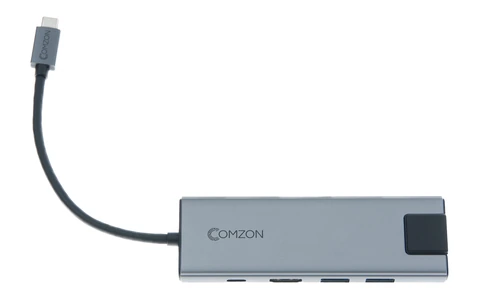
USB-C 9-in-1 Mini Dock. HDMI, USB C PD 100W, USB A 3.0 x 3, SD/TF 2.0, LAN 1000Mbps, 3.5mm Audio, Gray
30U3-35000
- Connector references
- USB-C · HDMI · USB C · USB A
- Data rate
- 1000Mbps
- Power rating
- 100W
- Dimensions in listing
- 3.5mm
Run an HDMI monitor, a USB keyboard and a wired network connection through one compatible Chromebook port while a separate charger feeds the dock.
HDMI is rated up to 4K at 30 Hz. The charging-only USB-C input accepts up to 100 W; check the computer’s requirements and the power delivered to it.
Apple Lightning Authorized Black iPhone, iPad, iPod USB Charge and Sync Cable, 3 foot
10U2-05103BK
- Length
- 3 ft
Check connector type, data support and charging rating separately for the exact item. Measure the installed route against this 3 ft length.
Bluetooth Wireless Headphone w/ Built-in Microphone, Adjustable Headband, Black
5002-33200
- Configuration
- Built-in Microphone


